Don't Let Apple Silicon Confuse You: Generation, Tier, and Memory
I’ve been shopping for a Mac mini over the past few days, and Apple’s chip naming nearly melted my brain.
From the 2020 M1 to the late-2026 M6, we’re now six generations deep. Every generation splits into base, Pro, Max, and Ultra. Then the machines themselves split into MacBook Air, MacBook Pro, Mac mini, iMac, and Mac Studio. Stack release years on top of that, open the used market, and your eyes instantly glaze over.
Worse, the internet is drowning in benchmark charts. If you do design or everyday office work, those numbers barely mean anything to you—and they shouldn't have to. All you really need to answer are three questions:
- Is a base chip enough for what I actually do every day?
- How much RAM should I buy—since it’s soldered and can never be upgraded?
- If I’m shopping used or refurbished, which chip actually shipped in which Mac and year?
This post is that map. It’s not a lab benchmark ranking—just the practical framework I used to sort through the configurations.
1. Read the Name First: The Number Is the Generation, the Suffix Is the Tier
The digit after the "M" is the generation: M1 → M2 → M3 → M4 → M5 → M6. Within the same tier, a higher number generally brings better efficiency, faster clock speeds, and stronger on-device AI.
The words Pro, Max, and Ultra after the number represent the performance tiers within that generation:
Ultra → Max → Pro → Base
Not every generation has all four tiers right away. As of November 2026, the base M6 is already shipping in the new Mac mini and the entry-level 14" MacBook Pro, but the M6 Pro isn't out yet. Higher-tier laptops are still running M5 Pro and M5 Max.
Here is the trap most people miss: a base M6 does not beat an M5 Pro across the board. The base M6 has roughly 170GB/s of unified memory bandwidth, while the M5 Pro officially pushes 307GB/s. Memory bandwidth, GPU core counts, and maximum RAM ceiling have to be weighed separately—don't just assume a bigger generation number wins everywhere.
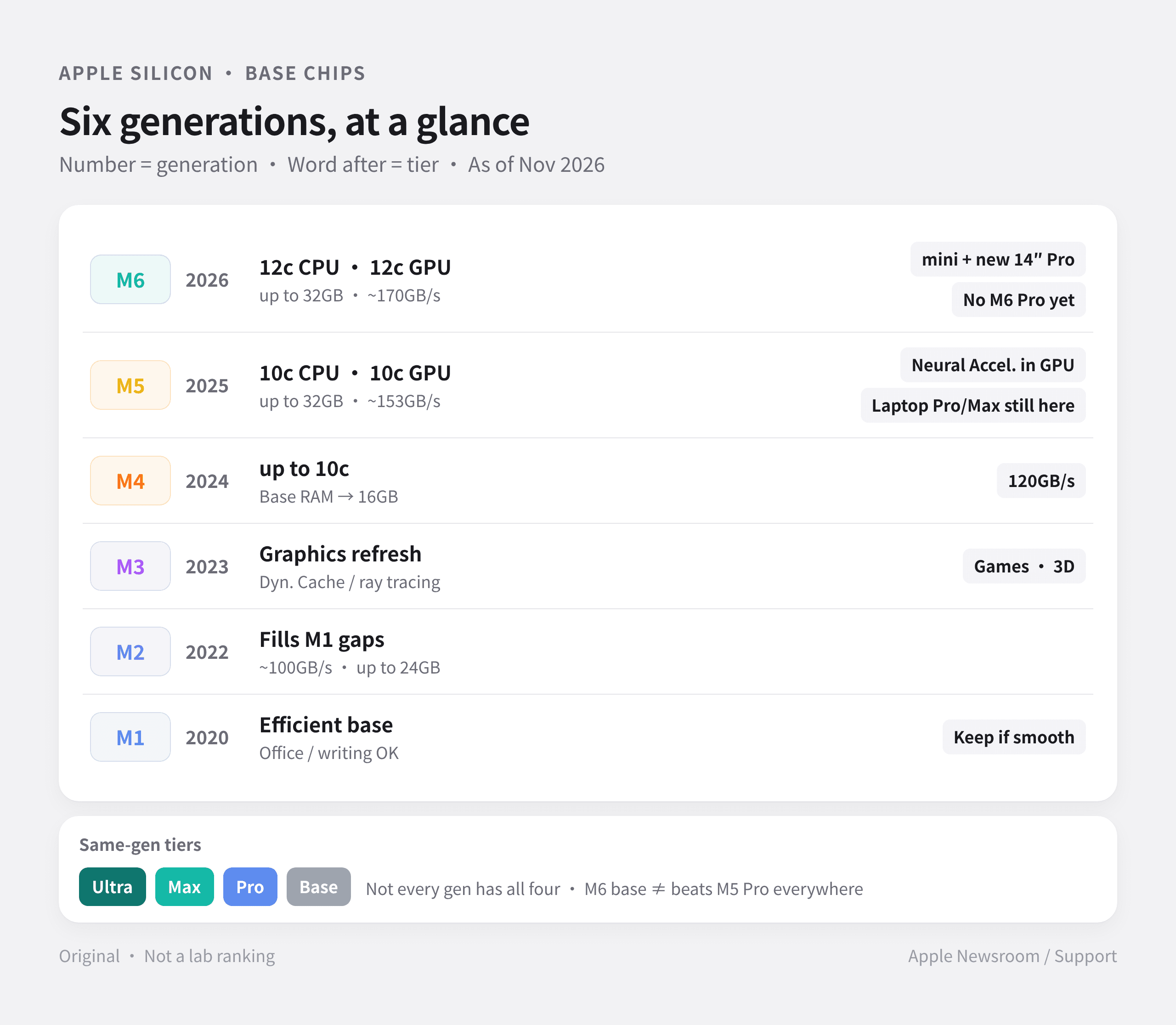
The one-line cheat sheet:
- For a routine upgrade in the same class: Look at the number (M4 base → M5 base → M6 base).
- To eliminate real workflow bottlenecks: Look at the tier (Base → Pro → Max), then lock in your RAM.
2. How Much Faster Is Each Base Generation?
Looking strictly at base chips (excluding Pro, Max, and Ultra), relative to M1 = 1.0×:
(Core counts come from Apple’s official specs; multipliers are derived from Geekbench Browser Mac averages as of Nov 5, 2026. Representative machines: Mac mini for M1/M2/M4/M6; 14" entry MacBook Pro for M3/M5. GPU scores are based on Metal.)
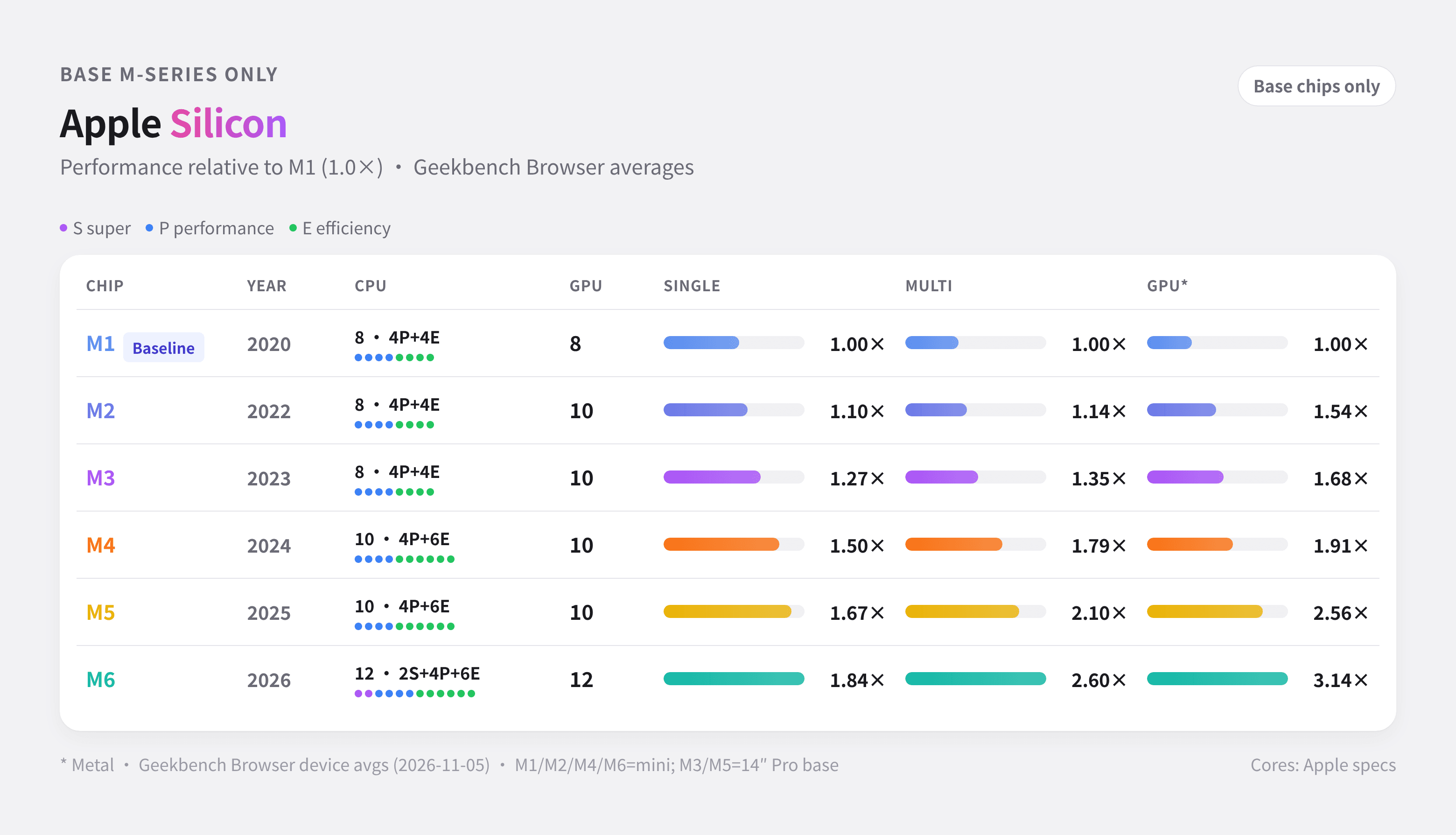
By the M6 generation, you’re looking at roughly 1.84× single-core, 2.60× multi-core, and 3.14× GPU performance over the original M1. The jump on paper is real—but for day-to-day writing, browsing, and office work, moving from an M1 to an M6 rarely feels like a 2–3× leap. Real-world slowdowns almost always come down to running out of RAM, or waiting on heavy exports and code builds.
3. Buy for What You Actually Do, Not for Geekbench Anxiety
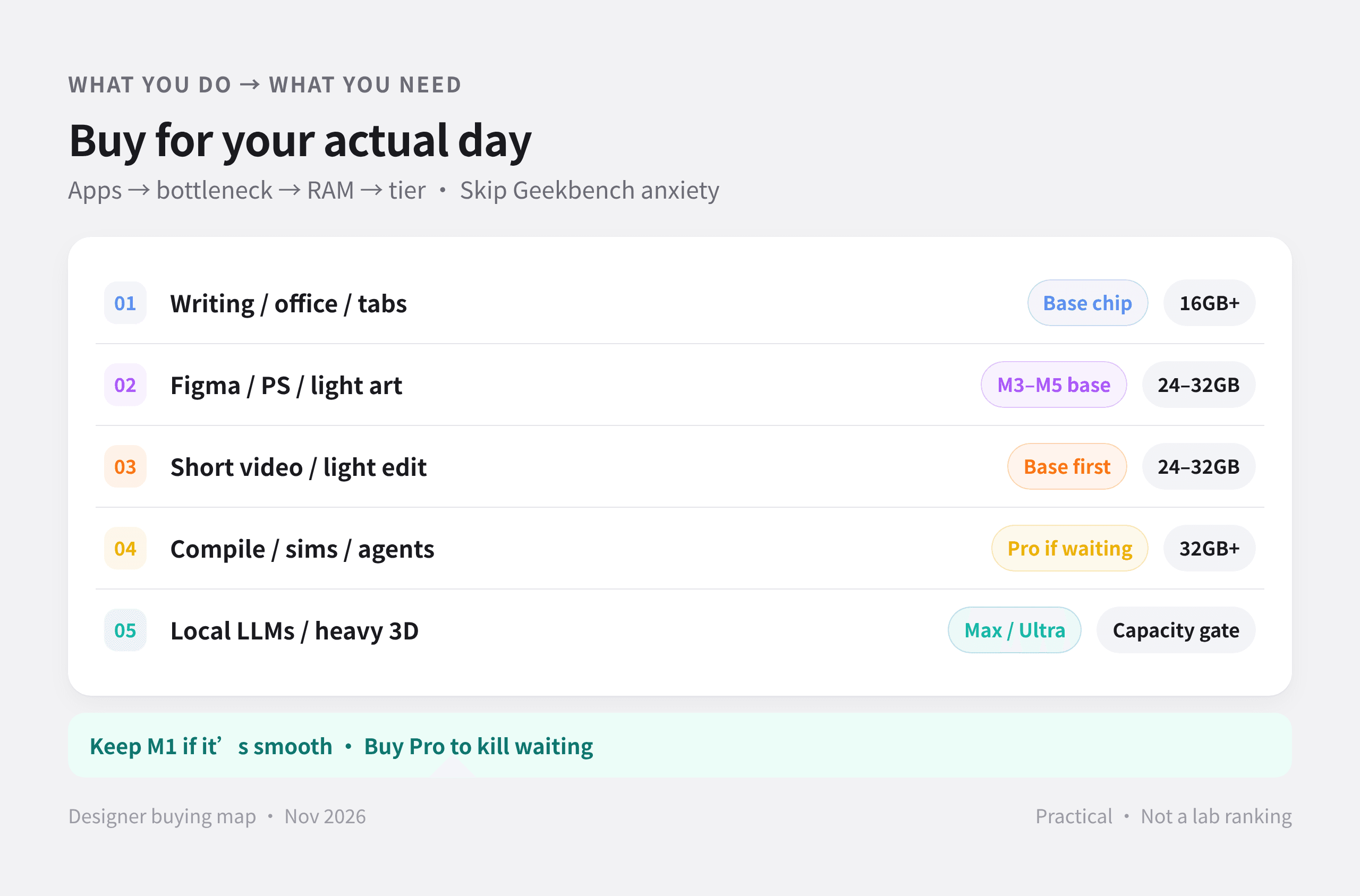
When I spec out a Mac, I start with the apps I live in all day and pinpoint where my current setup actually chokes. I lock in the RAM first, and only then look at the chip tier.
Writing, Office Work & Heavy Browser Tabs (Cloud AI)
Docs, spreadsheets, video calls, dozens of Chrome tabs, ChatGPT in the browser—all the heavy AI compute happens in the cloud. What you actually need is snappy multitasking without hiccups.
- Chip: A base chip is plenty. If your M1 still feels smooth, keep it.
- RAM: Start at 16GB. Most "my Mac feels sluggish" complaints are just Activity Monitor's memory pressure hitting yellow or red.
Design: Figma, Photoshop & Light Illustration
Multiple artboards, huge canvases, and a browser running alongside design apps. Stuttering here is almost always a RAM ceiling, not the lack of a Pro chip.
- Chip: An M3, M4, or M5 base chip is more than enough.
- RAM: Aim for 24GB; if your budget stretches, go 32GB. This is where your money makes the biggest difference.
Video Editing, Multi-Track Timelines & Light VFX
Timeline scrubbing and exports lean heavily on the Media Engine and GPU. For daily short-form videos, 1080p, or straightforward 4K cuts, a base chip is a great starting point. If you cut long-form projects, multi-cam timelines, or heavy effects, step up to a Pro chip.
- RAM: 24GB to 32GB minimum.
Development: Compiling, Simulators & Local Agents
Xcode, Docker containers, and a wall of terminal windows chew through both CPU cores and memory. If you regularly lose time waiting on builds, a Pro chip is well worth it (on laptops today, that means the M5 Pro).
- RAM: 32GB+ is a safe, comfortable floor.
Local LLMs, Heavy 3D & Complex Compositing
Large models have to fit entirely inside unified memory. Here, memory capacity and bandwidth matter just as much as the chip generation—size up to a Max or Ultra chip based on the parameters of the models you run. Capacity is a hard gate.
My decision order: Daily apps → Current bottlenecks → RAM + Bandwidth → Chip tier → Price
Keep your M1 if it still runs smoothly. Buy a Pro chip to eliminate real waiting time, not to cure spec-sheet anxiety.
4. RAM Is the Real Fork in the Road
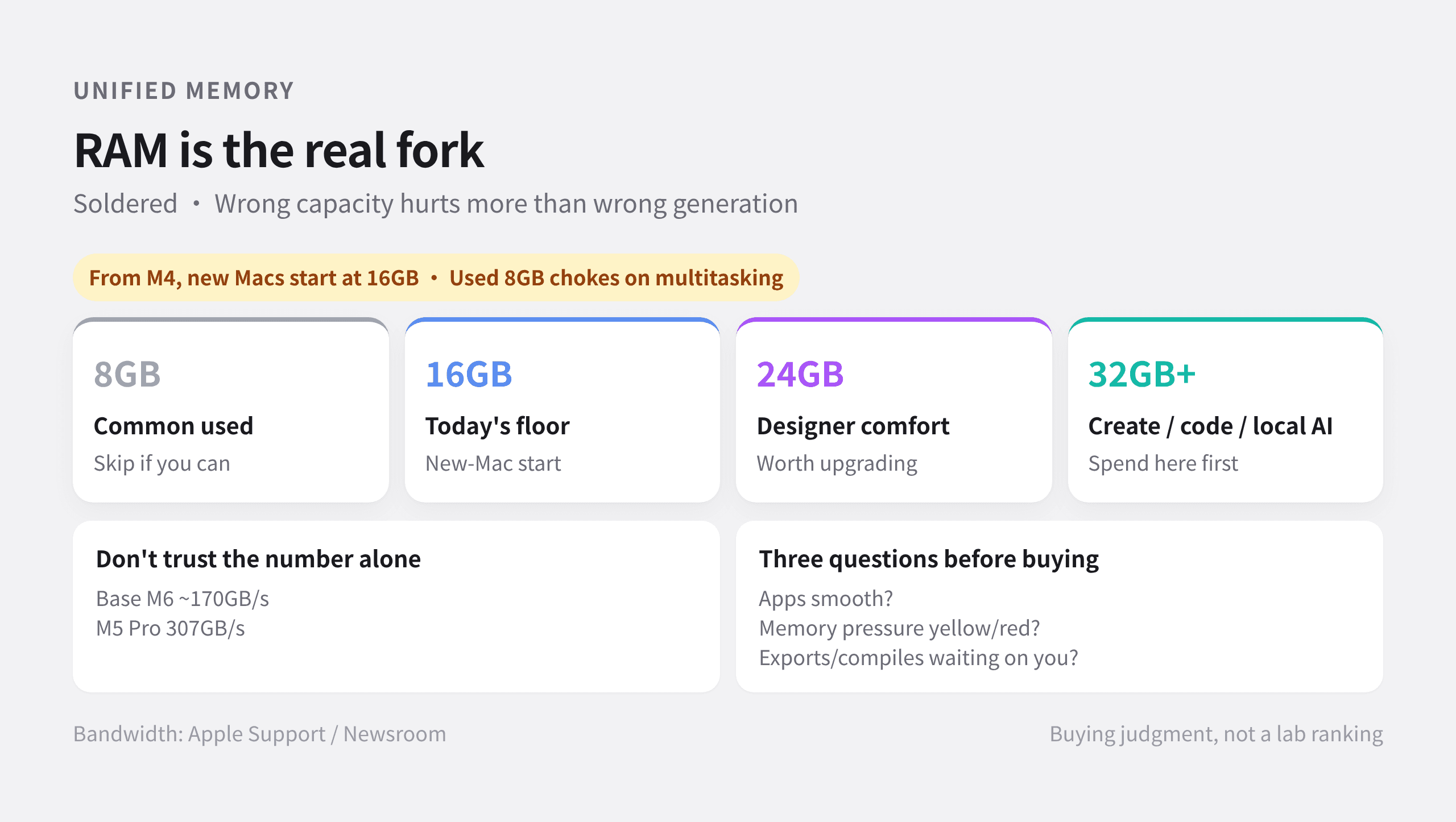
Apple’s unified memory is soldered directly into the SoC package. Buying a slightly older chip generation is easy to live with; buying too little RAM is a daily regret.
Starting with the 2024 M4 generation, all new Macs ship with at least 16GB of RAM (whereas older base models started at 8GB). The used market is still flooded with 8GB machines—multitasking on them today is rough, so skip 8GB if at all possible.
Here is how the four main tiers break down today:
- 8GB: Common on the used market, extinct on new Macs. Barely passable for light office work, but a pile of Chrome tabs plus a couple of apps will push memory pressure into the red fast. Avoid.
- 16GB: Today’s baseline. Totally fine for writing, office tasks, web browsing, and light daily design. It gets tight if you multitask heavily across creative apps or spin up small local AI models. Only stick to 16GB if you’re on a strict budget.
- 24GB: The sweet spot for designers. Running Figma, a heavy browser session, and chat apps side by side won't make the system choke. If I have extra budget, it goes here first.
- 32GB+: Built for heavy creation, software development, and local AI. Ideal for complex video timelines, multiple mobile simulators, and local LLMs. Base M4–M6 chips cap out at 32GB; if you need more, you’re automatically looking at Pro or Max tiers.
One quick reminder across tiers: don't get hypnotized by the "M6" label. The base M6 offers ~170GB/s of memory bandwidth, while the M5 Pro hits 307GB/s. A newer number doesn't mean it's stronger everywhere.
Ask yourself three questions before pulling the trigger:
- Do my daily apps run smoothly right now?
- Is the Memory Pressure graph in Activity Monitor constantly hitting yellow or red?
- Are slow exports or code builds actually holding up my work?
5. Used & Refurbished Year Map: Which Chip Shipped in Which Mac
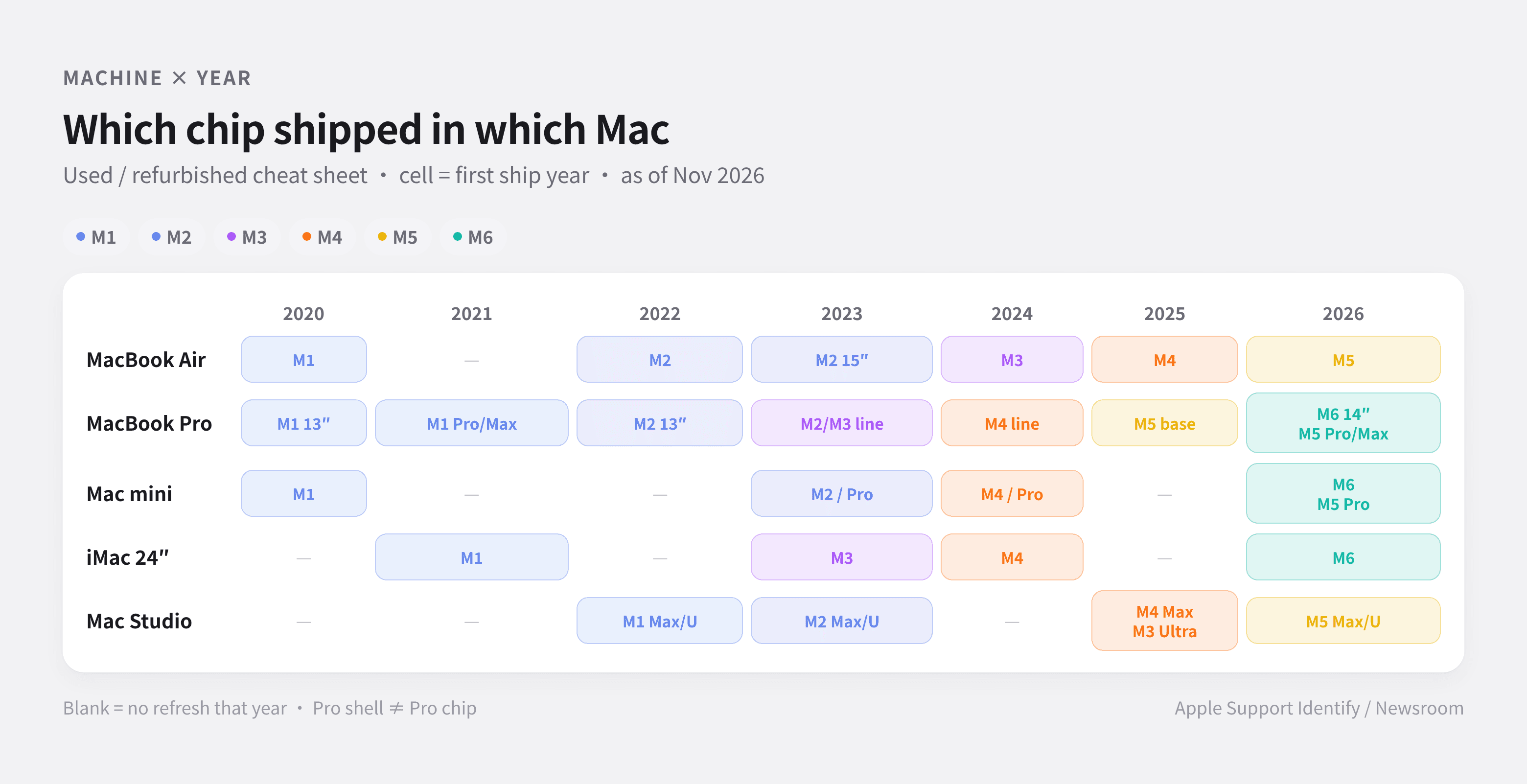
A few common traps to watch out for on the secondhand market:
- MacBook Air: 2020 M1 → 2022 M2 → 2023 (added 15" M2) → 2024 M3 → 2025 M4 → 2026 M5.
- MacBook Pro: Having "Pro" in the laptop's name does not mean it has a Pro chip inside. The entry-level 14" MacBook Pro shipped with a base M5 in 2025 and just moved to the base M6 in late 2026—while the higher-end 2026 models still run M5 Pro and M5 Max (since the M6 Pro isn't out yet).
- Mac mini: 2020 M1 → 2023 M2 / M2 Pro → 2024 M4 / M4 Pro → 2026 M6 / M5 Pro.
- iMac (24"): 2021 M1 → 2023 M3 → 2024 M4 → 2026 M6.
- Mac Studio: Updates on a slower cadence. 2022 M1 Max/Ultra → 2023 M2 Max/Ultra → 2025 M4 Max & M3 Ultra → 2026 M5 Max & M5 Ultra.
(Blank cells in the chart mean no refresh that year. When buying used, always verify the serial number or model year against Apple Support’s "Identify your Mac" page—never rely solely on a seller’s vague "M-series" listing title.)
6. My Personal Mac mini Baseline
I’m a designer. My typical day revolves around writing, Figma, way too many browser tabs, and occasional short-form video edits. Local LLMs are fun toys to tinker with, not part of my production pipeline. So my buying rule is simple:
- Chip: The base chip is plenty. On the 2026 Mac mini, that’s the M6. If you want to save money, a used or refurbished M4 or M5 base model with enough RAM still punches way above its weight.
- RAM: This is where I actually spend my budget. For design multitasking, 24GB is my starting line; if I’m doing heavier video work or keeping massive workspaces open all day, I go straight to 32GB.
- When a Pro chip is worth it: Don't buy it "just in case." Buy it if your Activity Monitor is constantly in the red, or if you're regularly sitting around waiting for exports and builds to finish. On the desktop side today, stepping up to the M5 Pro puts your money directly into solving those bottlenecks.
- What to avoid: Paying extra just to have the newest generation number on the box, or trying to save a quick buck on a used 8GB machine—you'll end up paying way more when you're forced to replace it early.
A final note to my future self:
Keep the M1 if it’s still smooth. Nail the RAM capacity first. Only buy a Pro chip for real bottlenecks.